
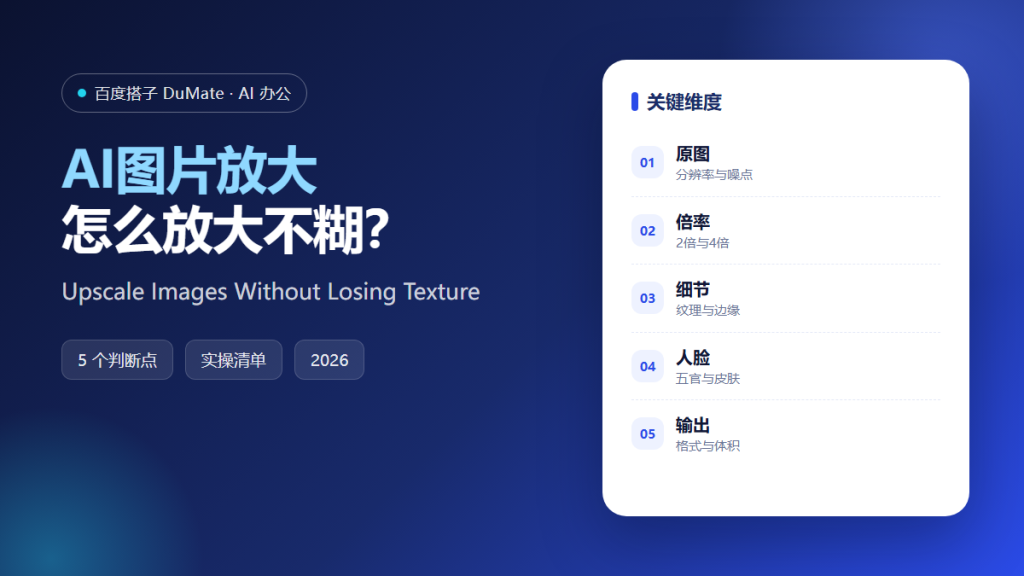
AI图片放大 can rescue an old image or ruin a good one. The difference is usually the source quality and the amount of processing. A clean photo at a modest ratio looks natural. A noisy image pushed to four times its size looks painted.
This guide covers a five-step upscaling process, the details that reveal a bad result, and the export choices that keep file sizes reasonable.
Key Takeaways
- Start with the best available original.
- Choose the smallest ratio that solves the problem.
- Check texture, text, and edges.
- Inspect faces separately.
- Export for the intended use.
Why AI图片放大 Needs a Source Check
Upscaling cannot recover detail that was never captured. It can infer plausible texture, which is useful for small prints and dangerous for evidence or product images. AI图片放大 should be used with a clear idea of what the output is for.
The second reason is noise. A noisy source becomes a pattern of invented detail. Denoising before upscaling usually produces a better result than pushing the ratio higher.
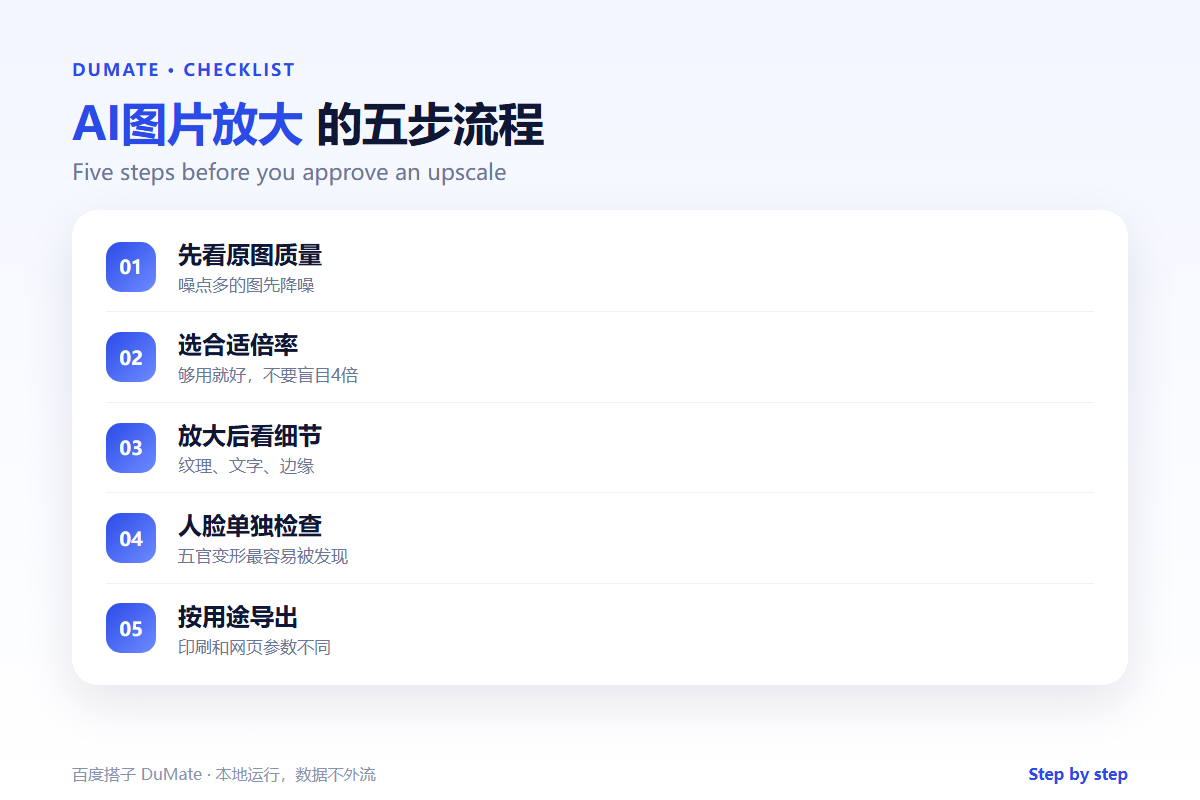
How AI图片放大 Works in Five Steps
Step 1: Evaluate the original
Zoom in at full size. Check sharpness, noise, and compression artifacts. If the image is blurry, upscaling will not create focus. AI图片放大 should be given a realistic target.
Step 2: Choose the ratio
Two times is enough for most screen uses. Four times is for print or archival work. Higher ratios increase the risk of a synthetic look. AI图片放大 is not a substitute for a better capture.
Step 3: Check texture and text
Look at fabric, hair, and small print. Text is the hardest test: invented letters are obvious. AI图片放大 should be rejected if the text becomes unreadable.
Step 4: Inspect faces
Faces reveal artifacts quickly. Check eyes, teeth, and skin texture. AI图片放大 often smooths skin too much, which makes a person look younger and less like themselves.
Step 5: Export for use
Use the right format and compression for the destination. A print file and a web file have different requirements. AI图片放大 output should be checked at actual display size.
An Upscaling Checklist
- The original is the best available.
- The ratio matches the use case.
- Texture looks natural.
- Text remains readable.
- Faces keep their character.
Where AI图片放大 Fails
It fails on motion blur and heavy compression. It also fails on images with important small text, such as labels or serial numbers.
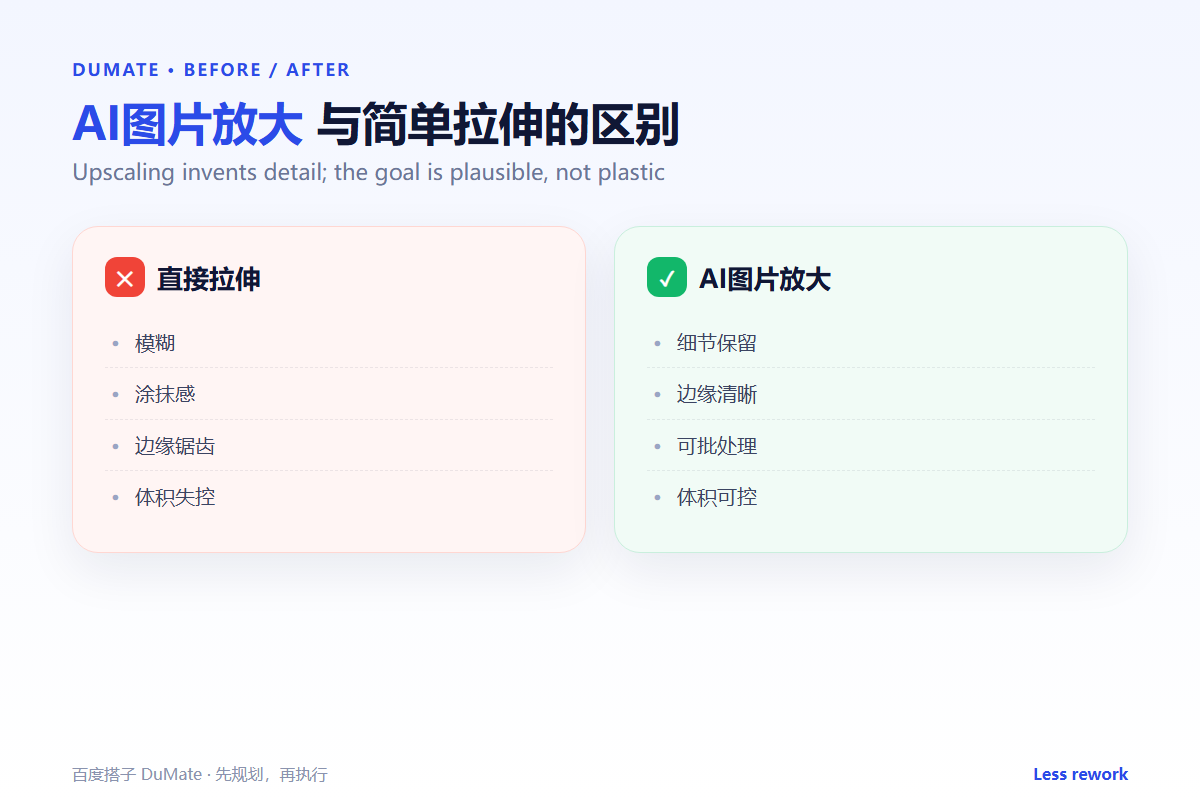
- Plastic skin texture.
- Invented letters and numbers.
- Haloes around edges.
- Oversized files with no visible gain.
Before and After
Before, a team upscaled a product photo to four times its size and used it in a brochure, where the texture looked artificial. After, AI图片放大 was applied at two times on a cleaner source, and the print looked natural at the required size.
More pixels are not the goal. A convincing image at the size it will be seen is the goal.
Used consistently, AI图片放大 becomes part of the normal review routine rather than a separate project.
A final check with AI图片放大 takes a minute and catches the errors that are easiest to miss.
The same AI图片放大 routine works for small tasks and large ones, which is why teams keep using it.
A Four-Week Rollout
The first week with AI图片放大 should be a small pilot, not a team-wide launch. Choose one recurring task with a clear output and run it end to end. Keep the sample small enough to check by hand. The point is to see where AI图片放大 saves time and where it creates review work.
During the pilot, keep a short log of inputs, outputs, and corrections. Record the time spent before and after. AI图片放大 feels faster even when it is not, so the log matters. At the end of the week, review the log with one colleague and decide whether to continue, change the input, or stop.
In week two, write a one-page standard for input and output. Include what must be checked and who approves the result. AI图片放大 works better when the standard is visible to everyone. In week three, add permissions and a review step. In week four, compare the results and write a short guide. That guide is what makes AI图片放大 survive after the first month.
Keep the pilot narrow. A broad rollout hides which step failed, and a narrow one shows exactly where the workflow needs help. Expand only after the narrow case is stable.
Keep the first month simple. One task, one owner, and one weekly review are enough to prove the workflow before it spreads across the team.
Write down what changed after each run. A short note is easier to trust than a memory, and it makes the next improvement obvious.
Review the output before it leaves your desk. A two-minute check catches most of the errors that would otherwise come back as questions.
Keep one example of a good result. New team members learn faster from a concrete reference than from a long explanation.
FAQ
Can I upscale a screenshot?
You can, but text will suffer. Recreate the interface at a higher resolution when possible.
Should I denoise first?
Usually yes. Noise becomes invented detail after upscaling.
What ratio is safe?
Two times for most images. Go higher only when the output size requires it and the source is clean.
延伸阅读
For batch jobs, see AI批量处理. File conversion is covered in AI文件转换. File organization is in AI自动整理文件. Tool selection is covered in AI效率工具. Automation controls are in AI桌面自动化. External references: W3C Web Accessibility Initiative and NIST AI Risk Management Framework.
评论
还没有评论,来说两句吧。以下为本文的引用通告: